Setting User Access to Guided Reordering
This topic is intended for Independent pharmacies only and is not applicable to Rexall pharmacies.
By default, Pharmacy Manager users will have full access to the Guided Reordering feature. That is, Pharmacy Managers will be able to turn Guided Reordering ON/OFF and set parameters that determine how it is calculated. All other user types will have read-only access to Guided Reordering but can still modify manual reorder parameters (Re-Order Point and Re-Order # Packs).
The Guided Reordering feature requires activation by PTS before any user, including Pharmacy Managers, can access it.
To modify a user's access to Guided Reordering:
-
Log into Propel Rx as a Pharmacy Manager or ADM.
-
If logged in as a Pharmacy Manager, select More (...) > Security and enter your password to log into the Security Administration Facility window.
-
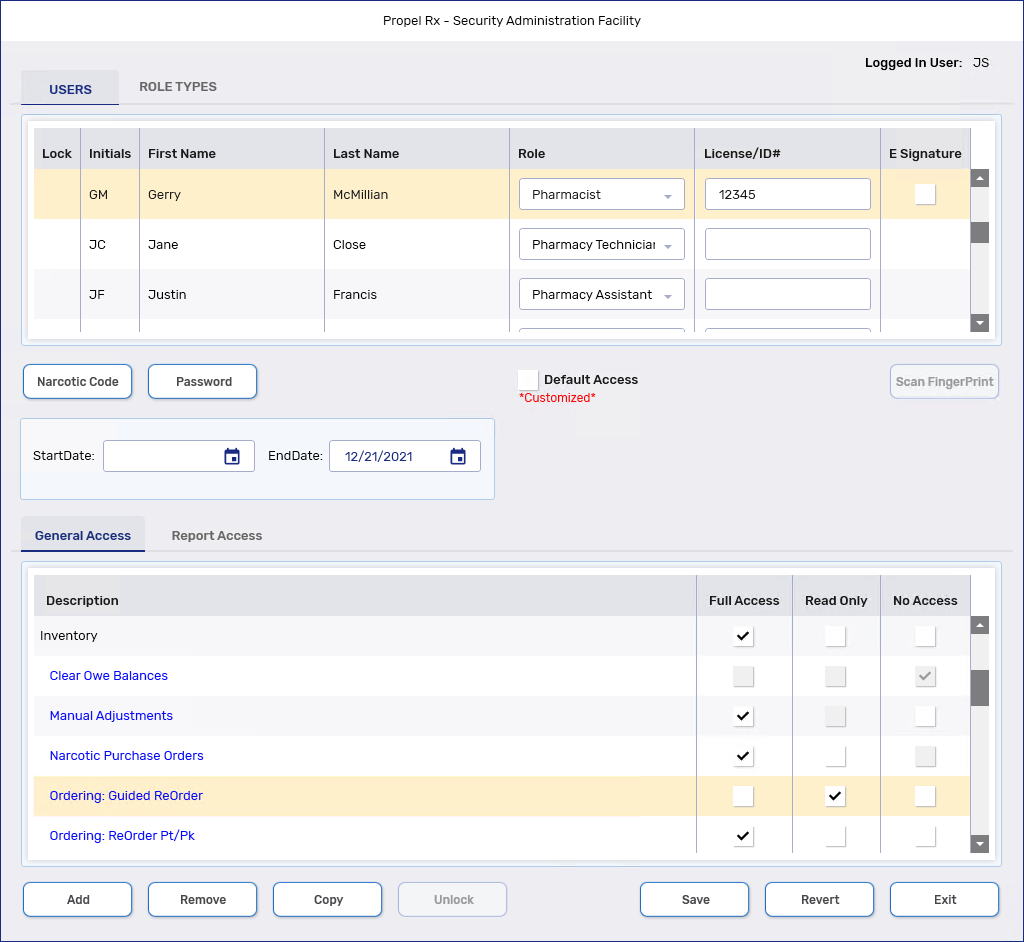
At the top, select the user whose access you wish to modify.
-
Under the General Access tab at the bottom, locate the Inventory row and then the Ordering: Guided ReOrder sub-row underneath.
-
On the Ordering: Guided ReOrder sub-row, modify the user's access as needed.
-
Select Save.
-
Select Exit.
-
Restart Propel Rx on all computers for the changes to take effect.